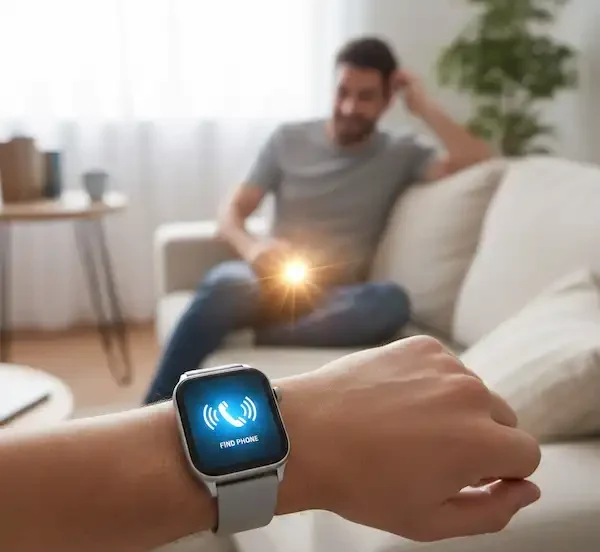
Find My Phone with Smartwatch: The Insider’s Guide to Never Losing Your Device Again
We have all had that sinking feeling. You are halfway out the door, patting your pockets or digging through your bag, only to realize the slab of glass that runs your entire life is missing. Usually, it is just buried under a sofa cushion or left in the bathroom, but the panic is real.
In my years working behind the tech support desk for one of the major wearable brands, I saw thousands of people come in frustrated because they couldn’t get their wrist candy to talk to their phone. The most common question wasn’t about heart rate tracking or step counts; it was always about how to find my phone with smartwatch features when things go sideways.
Most people think of this as a simple “ping” button. But under the hood, there is a complex dance of Bluetooth handshakes, permission layers, and physical physics that can stop the feature dead in its tracks. Today, I am skipping the manual and giving you the real-world breakdown of how to master this tool so you never have to tear your house apart again.
The Science of the “Ping”
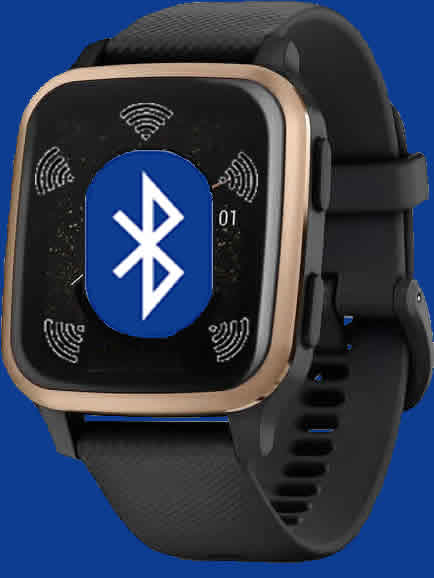
When you tap that little phone icon on your wrist, you aren’t just sending a sound. You are initiating a Bluetooth Low Energy (BLE) command. Your watch sends a packet of data—essentially a digital “wake up” shout—to your phone.
Inside the industry, we talk a lot about “path loss.” Bluetooth signals are incredibly weak; they operate on the 2.4GHz frequency, which is the same as your microwave and old-school cordless phones. If you are trying to find my phone with smartwatch commands through a kitchen with a running microwave or near a large mirror, the signal might literally bounce off the wall or get drowned out. Mirrors are notorious Bluetooth killers because the metallic backing reflects the radio waves.
Apple Watch: The “Flashing” Secret
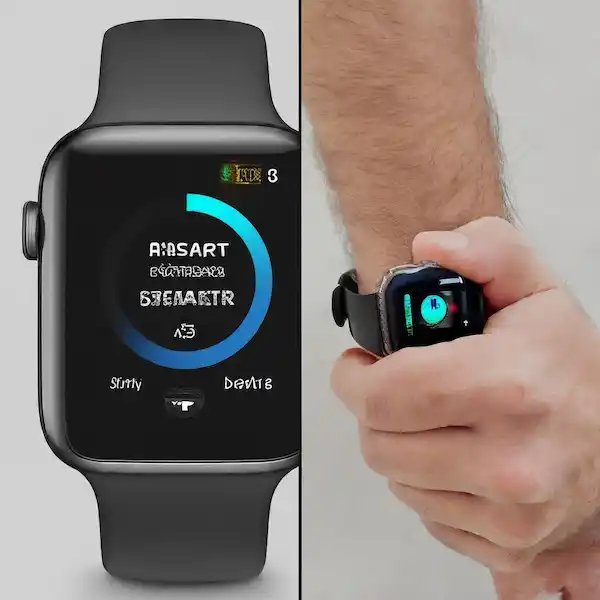
If you are an iPhone user, you probably know the Control Center has a ping button. But here is the insider trick: if you press and hold that button instead of just tapping it, your iPhone’s camera flash will also blink.
I remember helping a woman who had dropped her phone behind a heavy, dark oak dresser. She could hear the “ping,” but the sound was so muffled she couldn’t pinpoint the location. As soon as she held the button, the flashing LED lit up the wall behind the furniture.
For those with the newer Apple Watch Series 9 or Ultra 2, you have access to what Apple calls “Precision Finding.” This uses the Ultra Wideband (UWB) chip to give you an actual distance and direction arrow. It is basically a game of “hot or cold” played with high-frequency radio waves.
Android and Wear OS: The Permission Minefield
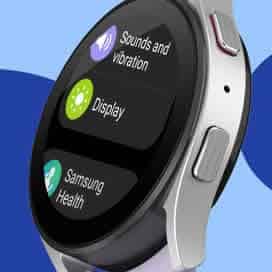
On the Android side—whether you have a Samsung Galaxy Watch or a Google Pixel Watch—the process is usually a bit more “wild west.” The find my phone with smartwatch app is generally pre-installed, but it lives and dies by your “Display over other apps” permission.
I’ve seen countless users run a system update, and suddenly their watch stops finding their phone. Why? Because the update reset the permission that allows the watch app to bypass a locked screen. If your phone is locked and the app doesn’t have “Overlay” permissions, it can’t force the screen to turn on or play the alarm at full volume.
Exhaustive Troubleshooting: Why It Fails and How to Fix It
If you are hitting that button and hearing nothing but silence, don’t throw your watch across the room. Run through this checklist—this is exactly what I would do if you brought your device to my support desk.
1. The Bluetooth Handshake Reset
Sometimes the “bond” between the two devices gets stale. They see each other, but they aren’t talking.
- The Fix: Toggle Bluetooth off on your phone first, wait ten seconds, then turn it back on. This forces the phone to re-broadcast its “I’m here” signal. Then, do the same on your watch.
2. Battery Optimization (The Silent Assassin)
Android and iOS are obsessed with battery life. They will “kill” apps that haven’t been opened in a while. If your watch companion app (like Galaxy Wearable or Garmin Connect) is put into “deep sleep,” the find my phone with smartwatch command never gets delivered because the receiver is turned off.
- The Fix: Go to your phone’s App Settings, find your watch’s companion app, and set the battery usage to “Unrestricted.” This keeps a tiny part of the app awake at all times.
3. The “Silent” Override
Most people assume the ping will play even on silent. On iPhone, this is true. On some Android builds, if you have your “Media” volume muted (different from your “Ringer” volume), the ping might be silent.
- The Fix: Ensure the find my phone with smartwatch app has permission to “Modify System Settings.” This allows it to crank the volume to 100% regardless of your settings.
4. The Obstacle Course
Bluetooth has a theoretical range of 30 to 100 feet, but in a house with drywall, studs, and electrical wires, that drops significantly.
- The Fix: Walk slowly through your home. Stay in each room for at least 5 to 10 seconds. Bluetooth takes a moment to re-establish a link once you move into range. If you are running through the house, you might move out of range before the watch and phone have time to “shake hands.”
Beyond the House: What if it’s Really Gone?
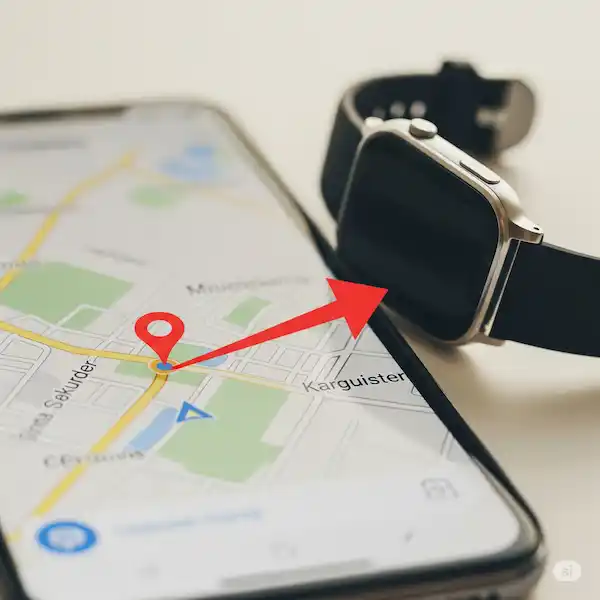
If your watch shows a “Disconnected” icon (usually a tiny red phone with a slash through it), your standard ping won’t work. However, if you have a cellular watch or one with GPS, you can use the “Find Devices” app on the watch face.
This doesn’t use Bluetooth; it uses the global Google Find My Device network or the Apple Find My network. It will show you a map of the last known location. I once left my phone at a coffee shop across town. My watch couldn’t ping it, but the map showed me exactly which table it was likely sitting on.
The “Dead Battery” Insider Secret
Here is something the manufacturers don’t advertise loudly: some modern phones, specifically iPhones from the 11 series and up, reserve a tiny “sip” of power even when the battery is at 0%. This allows them to stay visible on the find my phone with smartwatch network for up to 24 hours after they “die.” If you think your phone is dead, don’t give up. Check your watch’s map app anyway; you might get a location update that is only minutes old.
Industry Insider Tip: The Wi-Fi Bridge
Did you know your watch and phone don’t actually need Bluetooth to find each other? If both devices are connected to the same Wi-Fi network—even if you left your phone in the basement and you are in the attic—the command can travel over your home’s internet.
In the lab, we called this “Remote Connection.” For Samsung users, you have to enable this in the “Account and Backup” section of the wearable app. It lets the watch find my phone with smartwatch signals over Wi-Fi when Bluetooth fails. It is a massive lifesaver for people who live in multi-story homes.
FAQ: Common Questions from the Support Desk
Q: Can I find my phone if it’s in Airplane Mode? A: Usually, no. Airplane Mode cuts off the radio “ears” of the phone. Unless you manually toggled Bluetooth back on after turning on Airplane Mode, your watch won’t be able to reach it.
Q: Why does my watch say “Searching” but never finds it? A: This usually means there is signal interference. Someone might be using a high-powered Wi-Fi router nearby, or you are standing too close to a large metal appliance like a refrigerator. Move five feet and try again.
Q: Will this work if my phone was stolen? A: If the thief is smart, they will turn the phone off or put it in a “Faraday bag” (a pouch that blocks signals). However, if they just shoved it in their pocket, the find my phone with smartwatch map feature is your best bet to track the movement in real-time.
Q: Does using this feature drain my watch battery? A: Using the ping button uses almost zero battery. However, using the map feature with GPS will drain it quickly. Use the ping first; only switch to the map if you are sure the phone isn’t in the same building.
Q: Can I find my watch using my phone? A: Yes! Most companion apps have a “Find My Watch” feature that makes your watch vibrate and light up. It’s the same technology, just reversed.
The Human Element: Don’t Panic
I’ve seen people come into the store literally shaking because they couldn’t find their device. The best advice I can give you is to stay calm. Most phones are found within 20 feet of where you last remember having them.
The find my phone with smartwatch feature is a tool, not a miracle. It requires you to have your settings right before the loss happens. Take five minutes right now to check your permissions. Make sure your “Location” is set to “Always” for your watch app, and ensure “Background App Refresh” is turned on.
If you are a Garmin user, remember that the Garmin Connect app must be running in the background for the find-phone feature to work. If you “force close” your apps every night, you are essentially disabling your safety net.
Final Thoughts
At the end of the day, having a find my phone with smartwatch capability is like having an insurance policy. You hope you never need it, but you’re glad it’s there when you do. Whether you are using the high-pitched ping of an iPhone or the heavy vibration of a Wear OS device, knowing the limits of the technology—like the “mirror effect” or the “dead battery reserve”—makes you a much more capable owner.
Don’t wait until you’re running late for a flight to test this. Go into the other room, hide your phone, and see if you can find it. If it doesn’t work, go through the troubleshooting steps I laid out. Your future, stressed-out self will thank you.
Authoritative Resources for Further Reading
Learn more about Google Assistant on smartwatch – How to Fix Google Assistant on Smartwatch: Step-by-Step Guide
FCC Guide on Smartphone Security and Theft
Apple’s Guide on Control Center Icons